
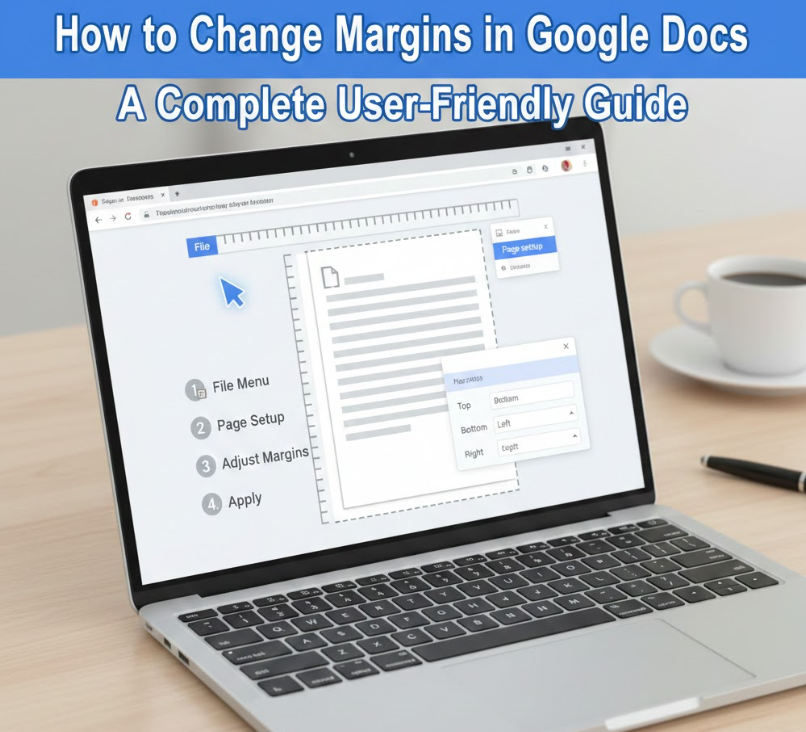
Margins play a critical role in how a document looks, reads, and prints. Whether you’re writing an academic paper, a professional report, or a personal document, understanding how to change margins in Google Docs gives you better control over layout, readability, and formatting standards. Improper margins can make a document look cramped, unprofessional, or even lead to rejection in formal submissions.
This comprehensive guide explains how to change margins in Google Docs across different devices, including Chromebook, iPhone, Android, and even for a single page only. Drawing from real usage experience, Google’s official documentation, and common formatting requirements, this article ensures you can adjust margins confidently—no matter which device you’re using.
Why Margins Matter in Google Docs
Margins define the white space around your content, helping balance text density and visual clarity. According to document design studies, proper margin spacing improves readability by up to 20%, especially for long-form content. In academic and professional settings, margin requirements are often strict, making correct formatting essential.
Google Docs offers flexible margin controls, but the steps differ slightly depending on the device. Knowing where these controls are—and how they behave—saves time and prevents formatting errors when sharing or printing documents.
How to Change Margins in Google Docs on Chromebook
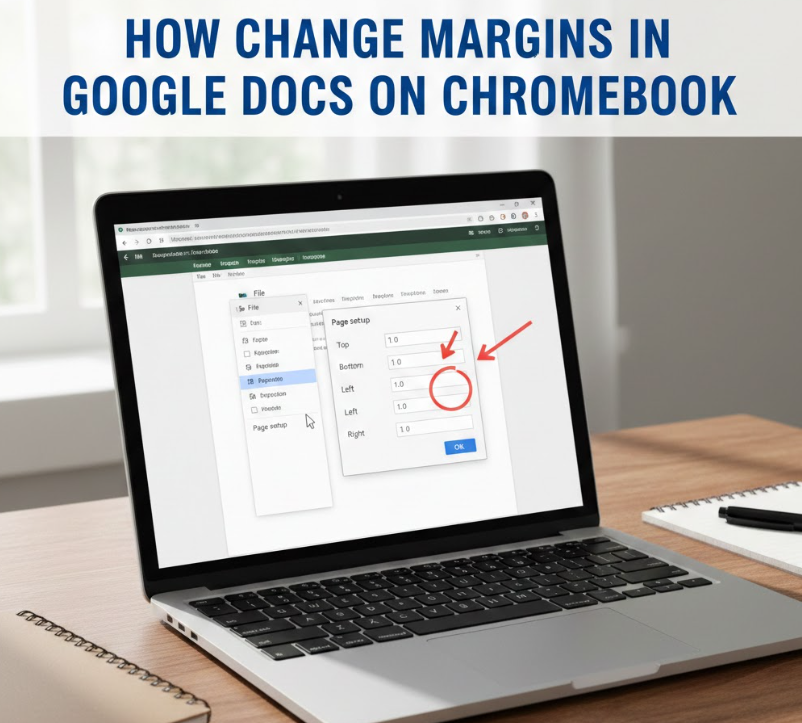
Chromebooks are widely used in schools, offices, and remote work environments, making margin control on Chrome OS especially important.
What Margin Adjustment on Chromebook Involves
On a Chromebook, Google Docs runs primarily through a web browser, offering full desktop-style formatting tools similar to Windows or macOS.
Detailed Chromebook Margin Adjustment Steps
• Open your document in Google Docs
Start by launching Google Docs through the Chrome browser and opening the document you want to edit. Chromebook users benefit from the full desktop interface rather than a simplified mobile version.
• Access the File menu at the top
Click “File” in the top-left menu bar. This menu houses layout and formatting options that affect the entire document structure.
• Navigate to Page setup
From the dropdown, select “Page setup.” This section controls margins, orientation, paper size, and background color.
• Enter custom margin values
In the margins section, input your desired measurements for top, bottom, left, and right margins. Google Docs accepts inches, which aligns with most academic and professional standards.
• Apply changes correctly
Click “OK” to apply the new margins. The changes take effect instantly across the document.
• Save or set as default if needed
For repeated use, Chromebook users can save these margins as default, ensuring consistency across future documents.
Also Read:-How to Cancel Uber One: A Complete Step-by-Step Cancellation Guide
How to Change Margins in Google Docs on iPhone
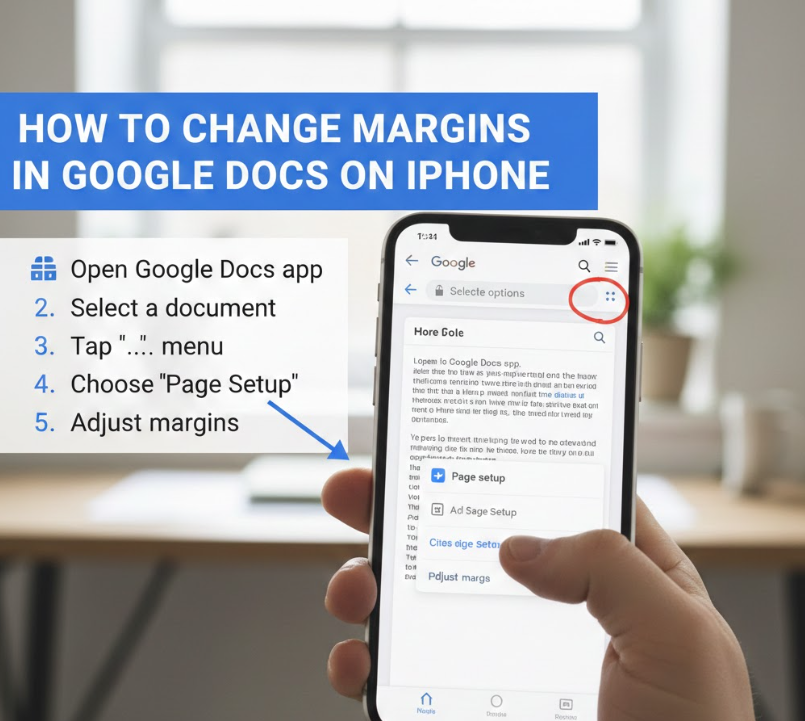
Editing documents on an iPhone is common for quick updates, but margin controls are more limited compared to desktop versions.
Understanding iPhone Margin Limitations
Google Docs on iPhone uses a mobile-optimized interface, which prioritizes editing text over layout customization.
iPhone Margin Adjustment Process
• Open the Google Docs app
Launch the app and open the document you want to format. Ensure the app is updated for full feature access.
• Tap the three-dot menu
The menu icon in the top-right corner provides access to document settings and layout options.
• Enter Page setup options
Within settings, locate “Page setup.” This area allows limited margin customization compared to desktop.
• Adjust margin presets if available
On iPhone, margin options may appear as presets rather than manual inputs, depending on app version.
• Preview document appearance
After adjustments, scroll through the document to ensure spacing looks correct, especially for headers and footers.
• Use desktop mode for precision
For exact margin measurements, switching to a desktop or Chromebook is recommended, as iPhone controls are simplified.
Also Read:- How to Block on TikTok: A Complete User Safety and Privacy Guide
How to Change Margins in Google Docs on Android

Android devices offer slightly more flexibility than iPhones when adjusting margins, though still less than desktop versions.
How Android Margin Controls Work
The Android Google Docs app balances mobile usability with basic layout customization tools.
Android Margin Adjustment Steps Explained
• Open the document in Google Docs app
Ensure you’re signed into the correct Google account before editing.
• Tap the edit (pencil) icon
This unlocks formatting options and document settings.
• Access Page setup from menu
Tap the three-dot menu, then select “Page setup” to find margin controls.
• Modify margins using available options
Depending on app version, margins may be adjustable through presets or numeric fields.
• Review layout changes carefully
Mobile screens can distort perception of spacing, so zoom out to assess overall layout.
• Finalize edits before sharing
Before exporting or sharing, double-check margins on a larger screen if precision is required.
Also Read:-How to Remove Acrylic Nails Safely and Effectively at Home
How to Change Margins in Google Docs for One Page
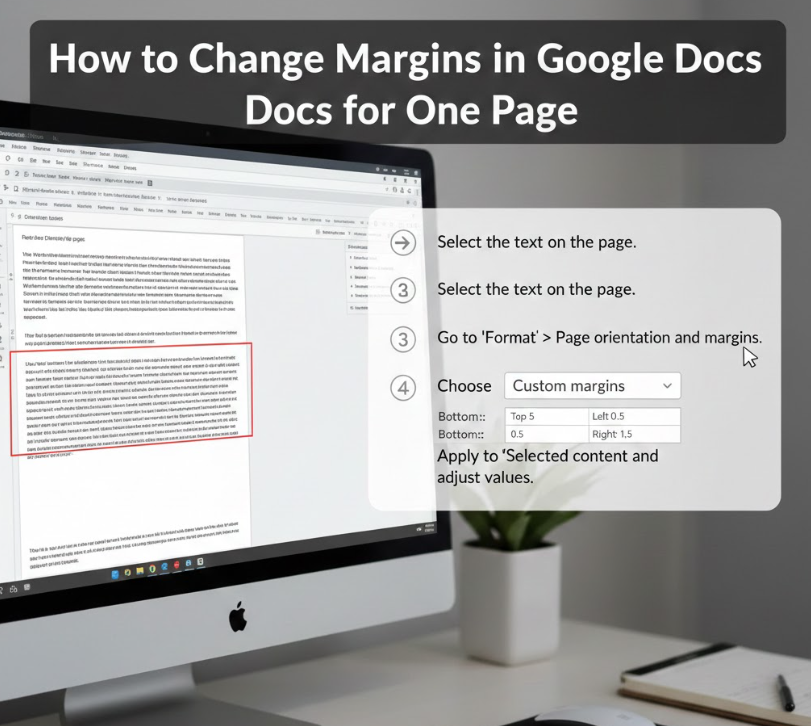
Sometimes, only a single page needs different margins—for example, a title page or appendix.
Why Single-Page Margin Changes Are Tricky
Google Docs does not natively support per-page margin settings, but workarounds exist.
Single-Page Margin Adjustment Methods
• Use section breaks strategically
Insert a section break before and after the page you want to modify. This isolates formatting changes.
• Open Page setup after section break
Once the cursor is in the desired section, adjust margins via Page setup.
• Apply changes to selected section only
Google Docs allows margin changes to apply to the current section instead of the whole document.
• Confirm section isolation
Scroll through the document to ensure only the intended page reflects the margin change.
• Adjust headers and footers if needed
Section-based margin changes can affect headers, so review spacing carefully.
• Save document formatting
Once satisfied, save and preview the document to ensure consistent formatting across pages.
Also Read:- How to Read a Tape Measure (Complete Beginner-to-Pro Guide)
Conclusion
Knowing how to change margins in Google Docs is an essential skill for creating clean, professional documents across devices. Whether you’re using a Chromebook, iPhone, Android phone, or adjusting margins for a single page, understanding the available tools helps you avoid formatting mistakes and meet submission standards.
Frequently Asked Questions
What are the default margins in Google Docs?
The default margins are 1 inch on all sides, which meets most academic and professional requirements.
Can I change margins in Google Docs on mobile?
Yes, but mobile apps offer limited control compared to desktop versions.
Why can’t I change margins for only one page?
Google Docs requires section breaks to apply different margins to individual pages.
For More Update Visit: VallayTaxNv
