
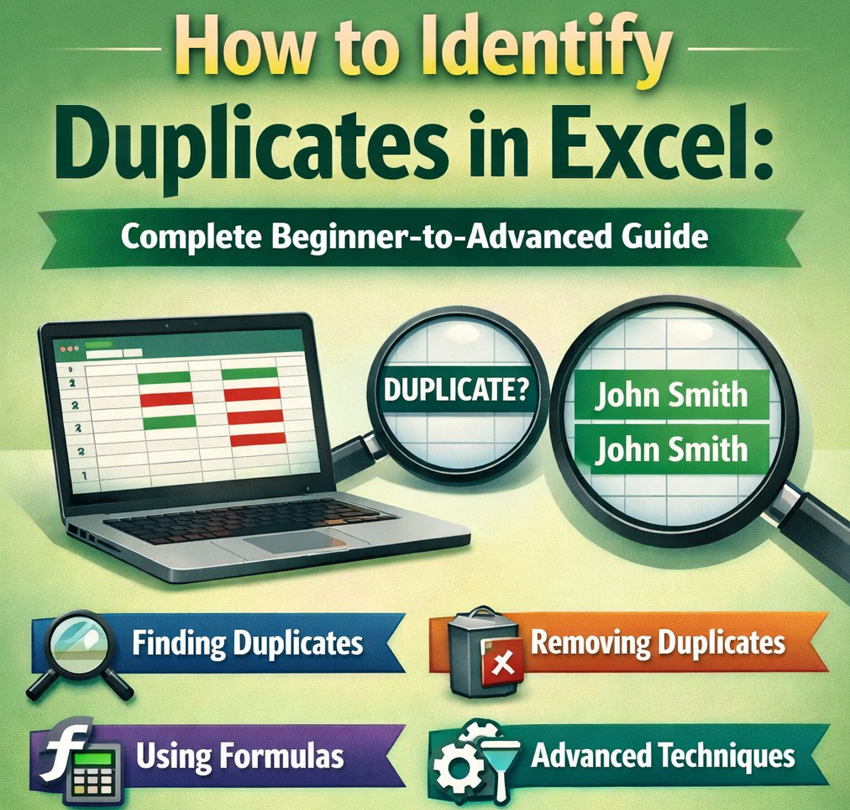
Working with spreadsheets often means handling large volumes of data, and even a small error can lead to serious reporting or decision-making problems. One of the most common issues users face is duplicate data. Learning how to identify duplicates in Excel is an essential skill for anyone working with lists, reports, customer databases, or financial records.
In this comprehensive guide, you’ll learn how to identify duplicates in Excel using safe, non-destructive methods. We’ll cover identifying duplicates without deleting, without removing, within a single column, across an entire sheet, and using Excel formulas. Each method is explained in depth so you can choose the best approach based on accuracy, scale, and purpose.
Why Learning How to Identify Duplicates in Excel Matters
Duplicate data can distort analytics, inflate totals, and reduce trust in reports. According to Microsoft data management best practices, duplicate entries are one of the top causes of spreadsheet inaccuracies in business environments. Identifying duplicates early helps maintain data integrity, improves workflow efficiency, and reduces costly errors.
Excel provides multiple tools—such as conditional formatting, formulas, filters, and helper columns—that allow users to highlight duplicate values without altering original data. Mastering these techniques ensures accuracy while keeping datasets intact.
How to Identify Duplicates in Excel Without Deleting
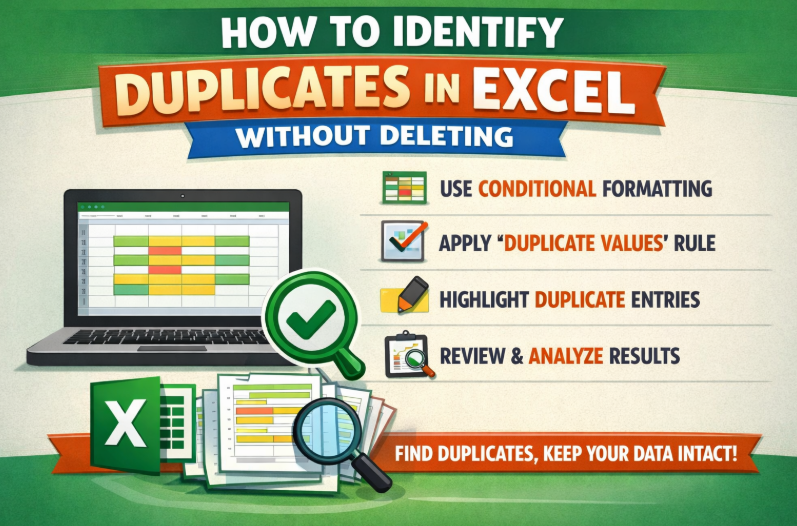
Identifying duplicates in Excel without deleting means locating repeated values while keeping all original data unchanged. This method focuses on visibility rather than data modification. It is ideal for auditing, reviewing, or validating datasets.
• Using conditional formatting for visual identification
Conditional formatting highlights duplicate values automatically using color rules. This allows users to instantly spot duplicates without modifying cell contents or structure.
• Preserving data integrity during review
Not deleting ensures no accidental loss of information. This is especially important for financial records, legal data, or customer lists where deletion could cause compliance issues.
• Customizing duplicate highlight rules
Excel allows users to adjust colors, fonts, and rules. This customization improves clarity when working with large datasets.
• Working with dynamic datasets
Conditional formatting updates automatically when new data is added. This makes it ideal for live or frequently updated spreadsheets.
• Avoiding irreversible changes
By not deleting records, users retain the ability to cross-check duplicates manually before taking action.
• Improving collaboration and transparency
Highlighted duplicates help teams review data together without fear of unintended edits.
Also Read:- How to Take Apart Xbox One Controller: Step-by-Step Guide
How to Identify Duplicates in Excel Without Removing Data
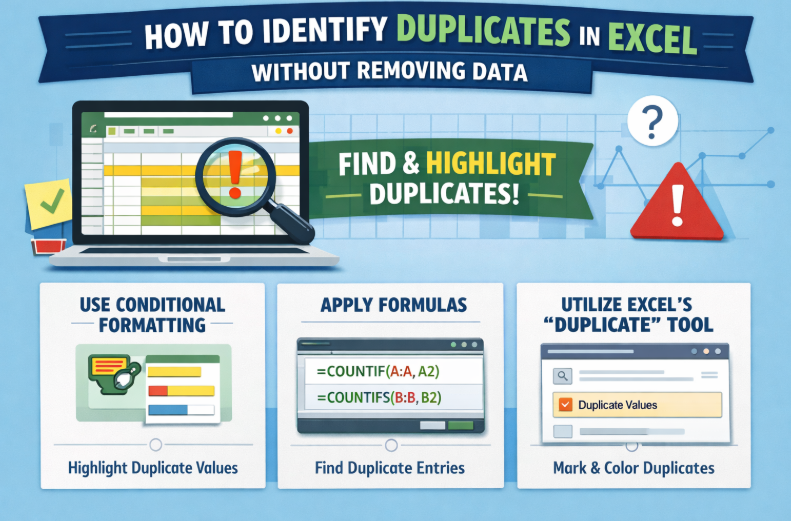
This approach focuses on detecting duplicate entries while keeping every row intact. It is commonly used during data validation and quality checks. The goal is awareness, not cleanup.
• Using helper columns for duplicate detection
Helper columns make it easier to spot duplicates by using formulas that clearly label entries as “Duplicate” or “Unique,” improving visibility during analysis.
• Applying COUNTIF functions safely
With COUNTIF, Excel evaluates how often a value appears in a dataset, and any result greater than one signals a duplicate record.
• Maintaining original dataset structure
Since no rows or cells are altered, the spreadsheet remains intact, preserving historical and reference data.
• Allowing decision-based action later
After duplicates are identified, users can choose whether records should be merged, removed, or retained based on context.
• Supporting audit and compliance needs
In regulated environments, non-destructive identification methods are preferred because they protect data integrity.
• Reducing user error risks
Avoiding deletion minimizes the chance of accidentally removing valid or critical entries.
Also Read:- How to Stain Concrete: A Complete Guide to Stunning, Durable Surfaces
How to Identify Duplicates in Excel Column
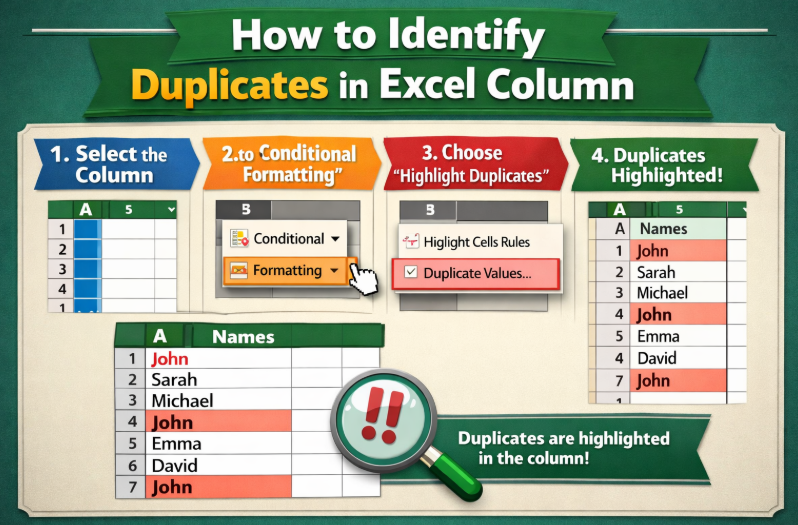
Identifying duplicates in an Excel column involves detecting repeated values within a single field. This is commonly used for emails, IDs, product codes, or names. It focuses on column-specific accuracy.
• Selecting the correct column first
Accurate results depend on targeting the exact column where duplicate values are most likely to appear.
• Highlighting repeats with conditional formatting
Built-in Excel formatting tools can visually mark duplicate entries within a single column for quick review.
• Detecting repetition using COUNTIF formulas
By comparing each cell against the entire column, COUNTIF efficiently flags repeated values.
• Recognizing case sensitivity limitations
Excel does not differentiate between uppercase and lowercase text unless advanced formulas are applied.
• Managing blank cells and errors properly
Unfiltered empty cells can distort results, so exclusions are often necessary.
• Strengthening overall data consistency
Regular column-level checks help standardize entries and improve dataset reliability.
Also Read:- How to Curl Hair: The Complete Guide for Every Technique
How to Identify Duplicates in Excel Sheet
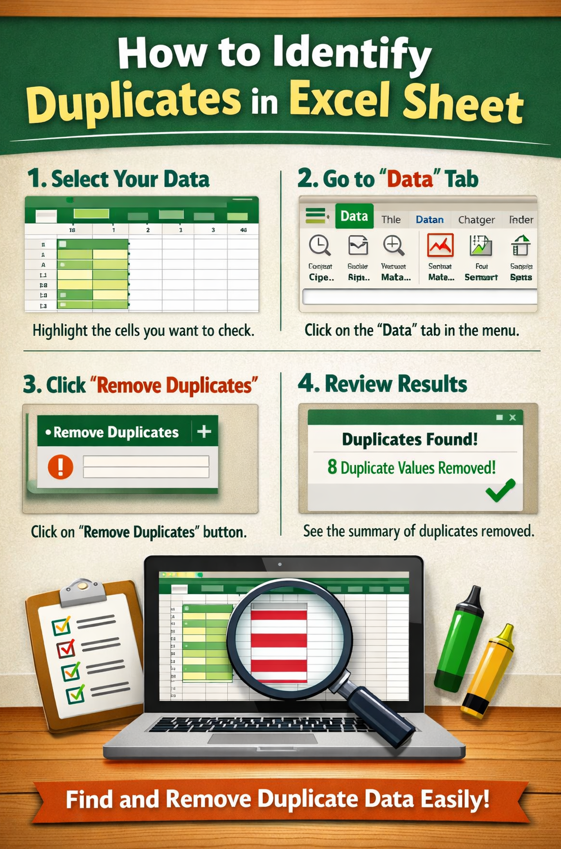
This method identifies duplicate values across an entire Excel worksheet. It is useful for large datasets where duplicates may appear in multiple columns. It provides a broader data quality overview.
• Selecting full data ranges accurately
Choosing the correct range ensures all relevant data is included in duplicate checks.
• Using advanced conditional formatting
Excel can highlight duplicates across multiple columns when ranges are defined properly.
• Creating helper columns for cross-column checks
Helper columns can combine values from multiple fields to detect complex duplicates.
• Managing performance with large datasets
Large sheets require efficient formulas to avoid slowing down Excel.
• Improving reporting accuracy
Sheet-wide duplicate detection ensures reports are based on clean, reliable data.
• Supporting data consolidation tasks
This method is especially useful before merging multiple data sources.
Also Read:- How to Splice Wires: The Ultimate Guide for Safe and Effective Wire Splicing
How to Identify Duplicates in Excel Formula
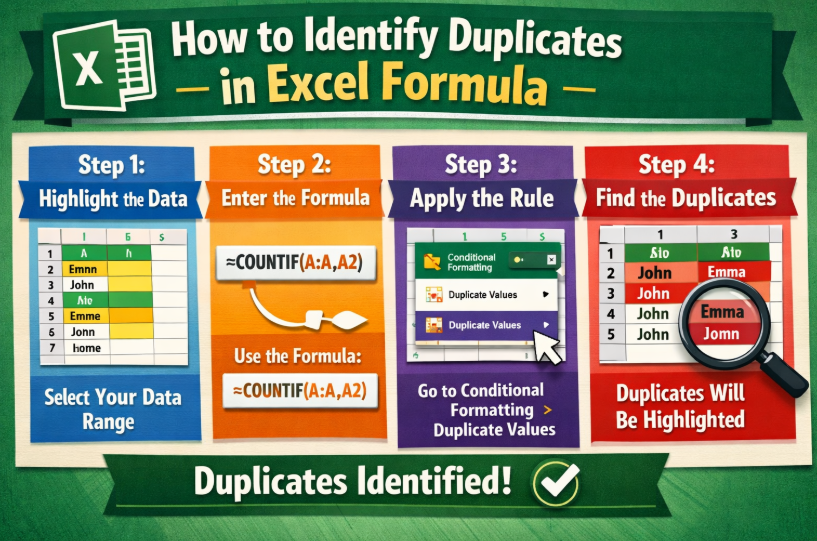
Using formulas to identify duplicates offers precise control and flexibility. Formulas allow logical conditions beyond basic tools. This approach is ideal for advanced users.
• Leveraging COUNTIF and COUNTIFS together
These formulas provide flexible duplicate detection based on one or multiple conditions.
• Improving clarity with IF statements
By combining IF with counting formulas, results become easier to interpret at a glance.
• Identifying duplicates across multiple criteria
COUNTIFS allows users to flag duplicates only when several conditions match.
• Designing formulas for scalability
Well-structured formulas automatically adapt as datasets grow.
• Integrating results into dashboards and reports
Formula-driven duplicate detection works seamlessly with automated workflows.
• Increasing transparency and auditability
Visible formulas allow teams to review and verify the logic behind each result.
Also Read:- How to Send Certified Mail: A Complete Step-by-Step Guide
Common Mistakes When Identifying Duplicates in Excel
• Selecting incorrect data ranges
• Ignoring blank cells
• Misunderstanding formula logic
• Accidentally deleting valid data
• Failing to update rules when data changes
Avoiding these mistakes improves data reliability.
Conclusion: Mastering How to Identify Duplicates in Excel
Understanding how to identify duplicates in Excel is a critical skill for maintaining clean, reliable data. Whether you use conditional formatting, formulas, or helper columns, identifying duplicates without deleting or removing data ensures accuracy and control. By applying the methods outlined in this guide, you can confidently manage spreadsheets of any size while preserving data integrity.
FAQs
Can Excel automatically identify duplicates?
Yes, using conditional formatting and formulas like COUNTIF.
Do duplicate tools delete data automatically?
No, identification tools only highlight duplicates unless removal is selected.
Are Excel duplicate checks case-sensitive?
By default, no. Advanced formulas are required for case-sensitive checks
For More Update Visit: VallayTaxNv
